


Why Your Theme Editor Isn’t Enough Anymore
When you want to customize Shopify theme code, you can access the code editor via your Shopify admin (Online Store > Themes > Actions > Edit code). This lets you go beyond the visual customizer to:
- Customize CSS: Change colors, fonts, and spacing.
- Modify HTML: Add custom content, embed videos, or create forms.
- Improve with JavaScript: Add pop-ups, sliders, and other interactive features.
- Edit Sections: Modify existing sections or create new reusable components.
- Adjust Templates: Customize page layouts for products, collections, and more.
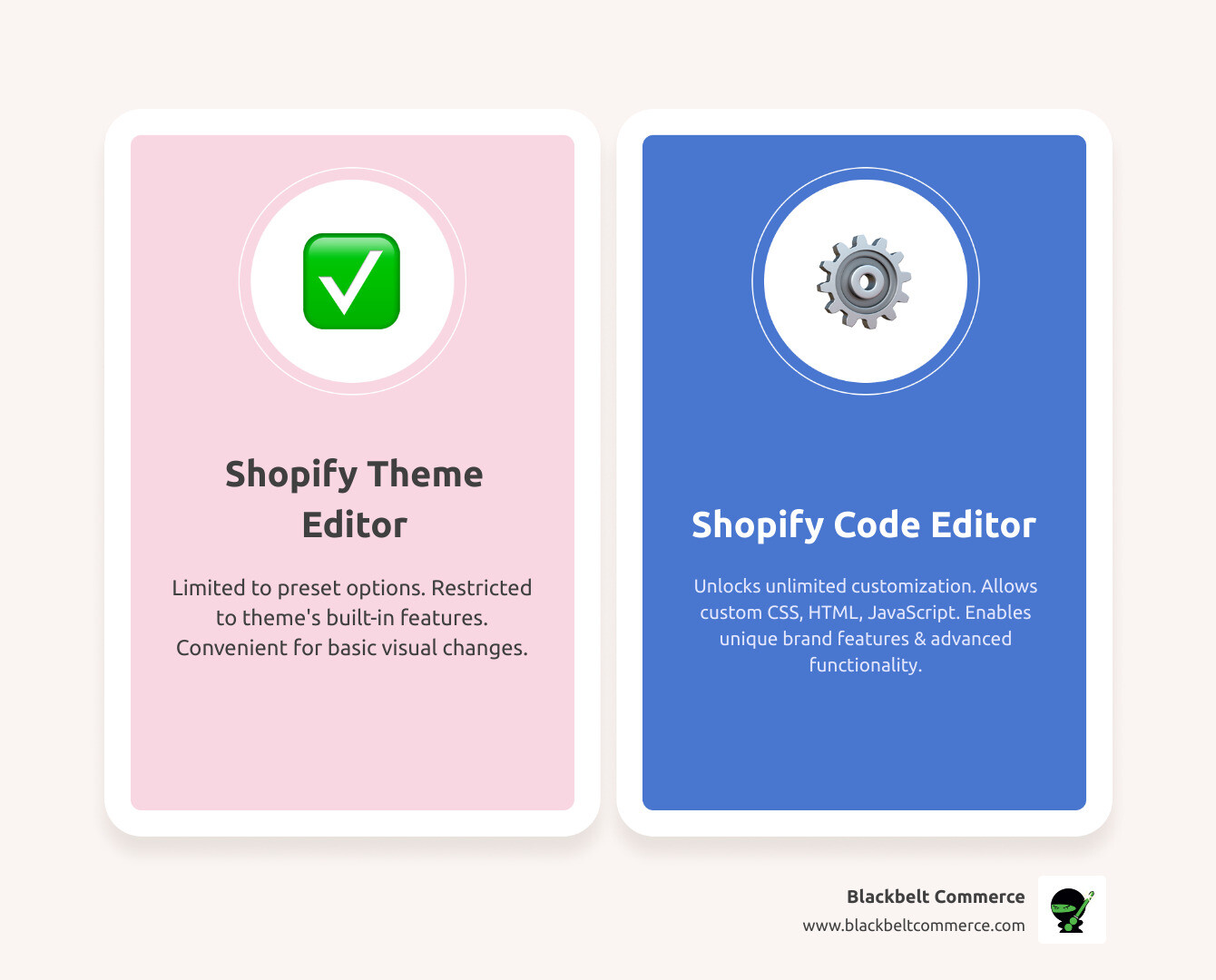
While Shopify’s theme editor is user-friendly, it limits you to the options built by the theme developer. Want a custom product badge, a unique checkout, or advanced filtering? The visual editor won’t be enough.
That’s where the code editor comes in. It open ups the full potential of your Shopify theme, letting you tweak colors not listed in the settings panel, add brand-new sections, and build unique features that set your store apart.
The best part? You don’t need to be a developer to make meaningful changes. With the right approach, you can tailor your theme’s code to match your brand vision exactly.
I’m Cesar A Beltran, founder of Blackbelt Commerce. With over 15 years of e-commerce experience, I’ve helped 1000+ businesses customize their Shopify themes. I’ve learned that the biggest improvements often come from the simplest code modifications.
Similar topics to customize Shopify theme code:
Getting Started Safely: Your Pre-Flight Checklist

While the standard Theme Editor is great for quick adjustments, it’s limited to the options your theme developer provided. To add unique features like a new animation or a special form, the Code Editor is essential. It gives you direct access to all theme files, offering the freedom to make your store truly unique.
Before You Touch a Single Line of Code
The golden rule for editing Shopify theme code is to always back up your theme. This non-negotiable step acts as your safety net.
The easiest method is to duplicate your theme. This creates a perfect copy of your live theme that you can work on without worry. If something goes wrong, you can simply delete the duplicate, and your live store remains untouched.
To duplicate your theme:
- From your Shopify admin, go to Online Store > Themes.
- Find your current theme and click the Actions dropdown menu.
- Select Duplicate.
This creates a safe playground for experimentation. We always recommend working on an unpublished, duplicated theme. While Shopify provides the tools, their support for advanced customizations is limited. For complex issues, you may need expert help. For more tips, see our guide on How to Customize a Theme for Your Shopify Store.
Accessing the Shopify Code Editor
With your backup in place, it’s time to access the Code Editor.
- From your Shopify admin, go to Online Store > Themes.
- Next to your duplicated theme, click the Actions button.
- Select Edit code.
You’re in! You’ll see a list of files on the left and the code editor on the right. This is where the magic begins. You can also go directly to the code editor interface.
Understanding the Shopify Theme Structure
Diving into the Code Editor can feel overwhelming, but Shopify themes are well-organized. Understanding this structure is key to confidently customizing your Shopify theme code.
Themes use Liquid (Shopify’s templating language), HTML, CSS, JavaScript, and JSON. Liquid dynamically pulls your store’s data into the theme. For a deeper dive, see Understanding Shopify’s theme structure. To build from scratch, check out our guide on How to Make Your Own Shopify Theme.
The Core Folders and Their Roles
Each folder in the Code Editor has a specific purpose:
- Layout: Contains
theme.liquid, the master template for your store. It holds repeating elements like the header and footer. Changes here affect your entire site. - Templates: Defines the structure for different page types, such as
product.liquidfor product pages andcollection.liquidfor collection pages. Online Store 2.0 themes use JSON templates to wrap sections. - Sections: These are the individual, reusable “building blocks” of your pages, like a “hero banner” or “featured products.” Edits to a section file apply everywhere it’s used.
- Snippets: Small, reusable pieces of code for elements that appear multiple times, like product cards or social media icons. Snippets help keep your code clean and manageable.
- Assets: A key folder containing all static assets, including CSS stylesheets, JavaScript (.js) files, images, and fonts. We’ll often work here to add custom styles and functionality.
- Config: Holds
settings_schema.jsonandsettings_data.json, which define the options available in your visual theme editor and store your chosen settings. - Locales: Contains JSON files for different languages (e.g.,
en.json,fr.json), holding all translatable text strings used in the theme.
Understanding these folders provides a roadmap for making targeted changes.
How to Customize Shopify Theme Code with Simple Edits
For non-coders, the best place to start when you want to customize Shopify theme code is with small, impactful changes that offer immediate visual results. For general guidance, Shopify offers excellent customization tutorials.
Quick Styling Wins with Custom CSS
Custom CSS is the easiest way to make visual changes like colors, fonts, and spacing. You can make your “Add to Cart” button pop with a brand color or adjust fonts for readability.
For minor tweaks, use the built-in custom CSS field (Online Store > Themes > Customize > Theme settings > Custom CSS). For larger projects, we recommend creating a dedicated CSS file in your Assets folder to keep your code organized.
Here’s how:
- In the Code Editor, go to the Assets folder and click Add a new asset.
- Choose Create a blank file and name it
custom.scss.liquid. Using.scss.liquidtells Shopify to minify your code, which can help your store load faster. - Open
theme.liquidin the Layout folder. - Find your theme’s main stylesheet link (e.g.,
{{ 'base.css' | asset_url | stylesheet_tag }}). - Add a new line after it to link your custom file:
{{ 'custom.scss.css' | asset_url | stylesheet_tag }}. Placing it after ensures your styles override the theme’s defaults.
Now, any CSS added to custom.scss.liquid will apply to your store. For example:
.product-title { color: red; } For more detailed guidance, see Shopify’s guide on Adding custom CSS to your theme and our tips on Shopify Order Printer App: Customising Layout CSS.
Adding Custom HTML for New Content
HTML defines your page’s structure. You can add custom HTML to introduce new content blocks or embed elements from other services.
The simplest method is the Custom HTML block in the theme editor (available in most modern themes). Drag it onto your page and paste your code to embed videos, add contact forms, or insert custom text snippets.
For more complex or reusable content, consider creating a new section by adding a new .liquid file to the Sections folder. This is better than pasting HTML directly into existing section files, which can break your layout. For layout ideas, see our guide to Create Multiple Columns Using HTML.
How to customize shopify theme code for improved functionality
JavaScript (JS) adds interactivity to your store, like pop-ups, sliders, or alert messages. The best practice is to create a dedicated file in your Assets folder.
Here are the steps:
- In the Code Editor, go to the Assets folder and Add a new asset.
- Choose Create a blank file and name it
custom.js. - In your
theme.liquidfile (Layout folder), add the following line right before the closing</body>tag. This placement ensures your page content loads first, improving user experience. - Add this line:
{{ 'custom.js' | asset_url | script_tag }}.
Any code in your custom.js file will now run on your store. For example:
alert('Welcome to our store!'); For more examples, see our guide on How to Add a Smooth Scroll Effect on Shopify.
Best Practices for Testing and Finalizing Your Changes
Making changes is only half the battle; ensuring they work perfectly is the other. Diligent testing and smart tracking are crucial. For general pitfalls to avoid, check out these 3 Shopify Design Mistakes to Avoid.
Preview, Test, and Troubleshoot Your Changes
Your duplicated theme is a safe sandbox for experimentation. Use these tools to test your work:
- Use the Preview Button: After any change in the Code Editor, click the “Preview” button in the top right to see your changes live in a new tab without affecting your published store.
- Leverage Your Browser’s ‘Inspect’ Tool: Right-click anywhere on your previewed site and select “Inspect.” This developer tool lets you examine the HTML and CSS of any element. You can temporarily change CSS properties in the browser to test styles before coding them and find the correct CSS selectors to target. Learn more about how to modify CSS and HTML this way.
- Make Incremental Changes: Make one small change at a time. Save, preview, and test it. If something breaks, you’ll know exactly what caused the issue, making it much easier to fix.
- Use Theme Check: Shopify’s built-in Theme Check scans your code for potential issues, warnings, and best practice violations. Pay attention to its suggestions to keep your code clean and efficient.
How to customize shopify theme code and keep track of your work
Keeping track of your edits is essential for understanding and undoing them if needed.
- Use Code Comments: Leave notes for yourself directly in the code that are ignored by the browser. This helps you remember the purpose of your custom code.
- Liquid:
{% comment %} Your notes here {% endcomment %} - CSS & Multi-line JS:
/* Your notes here */ - Single-line JS:
// Your notes here
- Liquid:
- Rolling Back to an Older Version: For any
.liquidfile, the “Current” dropdown at the top of the Code Editor lets you view and revert to previously saved versions of that file. This is your ultimate undo button. - Document Your Changes: For larger projects, keep a simple document logging your changes, the date, and a brief description. This provides a high-level history of your modifications.
By following these best practices, you can customize Shopify theme code safely and effectively, minimizing risks and maximizing results.
Frequently Asked Questions about Shopify Code Editing
Here are answers to common questions about customizing your Shopify theme.
What is the safest way to edit my Shopify theme’s code?
The safest way is to always work on a duplicated, unpublished theme. This creates an isolated environment to experiment and test without any risk to your live store. If you make a mistake, you can simply delete the duplicate. Creating this backup is the most critical step before you begin.
Can I undo a change I made to the code?
Yes. The Code Editor has built-in version control for .liquid files. In the editor, click the “Current” dropdown menu at the top of a file to see a list of previous saved versions with timestamps. You can select an older version and save to roll back your changes instantly.
What’s the difference between adding CSS to the theme editor vs. a custom file?
Understanding this can save you future headaches.
- Theme Editor’s “Custom CSS” Field: Found under Customize > Theme settings > Custom CSS, this is best for small, quick adjustments. It’s easy to use and offers a live preview, but it has character limits and can become disorganized with large amounts of code.
- A Custom CSS File: Creating a file like
custom.scss.liquidin your Assets folder is better for larger customizations. This method keeps your code organized, is less likely to be overwritten by theme updates, and allows you to use advanced SCSS features that can improve site performance.
In short, use the theme editor’s field for minor tweaks and a dedicated file for more substantial, long-term changes.
Conclusion
You now have the foundation to customize Shopify theme code with confidence. The path to success starts with backing up your theme and understanding its structure. From there, simple CSS edits, incremental changes, and proper testing will allow you to make a big impact.
This approach, including documenting your work with comments and knowing how to roll back changes, builds both your skills and your confidence. You are in control.
However, knowing your limits is just as important as knowing your capabilities. A simple change can sometimes have unexpected consequences, and some visions require complex integrations that go far beyond basic edits.
When your project needs advanced functionality like custom checkout experiences or complex product configurators, expert help is invaluable. At Blackbelt Commerce, we have over 15 years of experience turning ambitious e-commerce visions into reality. Our team specializes in complex, large-scale projects where the customization needs exceed what theme editors can handle.
Think of us as your partners for bigger goals. While you handle satisfying CSS tweaks, we’re here for the heavy lifting: custom integrations, performance optimization, and conversion-focused design that requires deep technical expertise.
Your Shopify store deserves to stand out. Understanding how to customize Shopify theme code puts you in control of your brand’s digital expression.
Ready to push beyond the basics? Explore our Shopify Theme Customization services and find out how we can help bring your boldest e-commerce ideas to life—safely, professionally, and with the results your business deserves.
Quick Answer: customize shopify theme code
Shopify theme customization changes a store’s design, layout, navigation, product presentation, and conversion flow without rebuilding the entire platform. The best customizations improve the shopping experience while preserving speed, SEO structure, and future maintainability.
Want a sharper Shopify growth plan?
If this article connects to a current store decision, use the calendar to book a strategy call and turn the idea into a practical plan.
Key Takeaways
- Shopify theme customization should improve the storefront experience while protecting speed, SEO structure, mobile usability, and future maintainability.
- Useful customization work connects design changes to product discovery, trust, conversion paths, merchandising, and operational needs.
- Internal links should reinforce Shopify landing page design, custom development, Shopify experts, and Shopify Plus agency support where natural.
- The commercial bridge should show when a theme change becomes a strategic UX, CRO, or development project.
- Use the same-page Calendly CTA so qualified merchants can book a strategy call without being pushed into a long form.
How this connects to your Shopify growth strategy
This article should remain useful for readers researching customize shopify theme code, but it also needs to show when the topic becomes a business decision. For the Shopify Custom Development, Design, and Technical Implementation cluster, the commercial bridge is practical: once the reader understands the concept, the next step is deciding whether their current Shopify setup can support the desired experience, conversion path, and operational workflow. That is where expert planning, design, development, CRO, and SEO support can turn the idea into measurable store improvements.
Want a sharper Shopify growth plan?
Use this guide as a decision tool. Then book a strategy call when you want a practical roadmap for your store.
Related Shopify resources
These internal resources support the Shopify Custom Development, Design, and Technical Implementation topic cluster and help connect this guide to stronger commercial next steps:
- Shopify Custom Development
- Shopify experts
- Shopify Plus agencies
- Shopify Custom Development — Parent service page for the reader’s next commercial step
- Blackbelt Commerce — Home-page authority link for brand and core Shopify expertise
- Shopify experts — Money-page link requested for expert-hiring intent
- Shopify Plus agencies — Money-page link requested for high-growth and Plus-agency intent
- Shopify CRO — Conversion service page for readers focused on revenue and lead generation
- Shopify checkout optimization — Related conversion article
- Shopify conversion optimization — Related CRO article
Questions store owners ask before taking action
What does it mean to customize a Shopify theme?
It means adjusting the store’s design, sections, templates, navigation, product presentation, and customer journey so the site better supports the brand and buying experience.
What should merchants customize first?
Start with high-impact areas such as the homepage, collection pages, product pages, navigation, mobile experience, trust signals, and conversion-focused calls to action.
Can theme customization hurt SEO or performance?
Yes, if changes add slow scripts, break heading structure, remove important content, create duplicate templates, or make the mobile experience harder to use.
When should a merchant hire Shopify experts for theme customization?
Expert help is useful when design changes require custom code, conversion strategy, app cleanup, SEO protection, complex templates, or a reliable QA process.
How should this article lead to a strategy call?
It should educate readers on safe customization decisions, then invite qualified merchants to book a call when they need help improving the storefront without damaging performance or SEO.
Future articles needed for topical dominance
To build deeper topical authority around this cluster, these supporting topics should be created later and linked back into this article:
- Customize Shopify Theme Code Checklist for Shopify Store Owners: Creates a practical support article that turns the Shopify Custom Development, Design, and Technical Implementation topic into an actionable review tool.
- Common Customize Shopify Theme Code Mistakes and How to Avoid Them: Captures problem-aware searches and gives BBC a natural place to explain implementation risks without hard selling.
- When to Hire Shopify Experts for Customize Shopify Theme Code: Connects informational demand to the expert-hiring money page while preserving educational intent.
Want a sharper Shopify growth plan?
Ready to turn the advice in this article into an action plan? Open the calendar here and choose a time that works for you.

